Slow graphical user interface
Article#: 00121
Date: 2026-04-28
Author: Radim
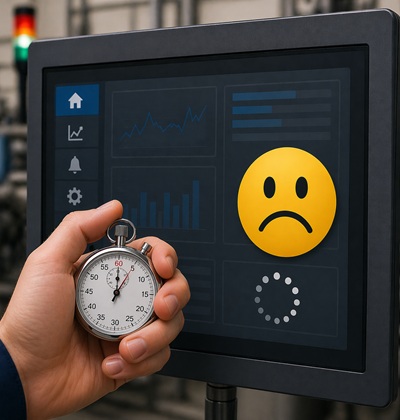
Finally, it's here.
We got the opportunity to create a new HMI visualization - choose technologies, add new features, and design a modern look.
This will be something!
We will replace the old system with a new, better, and more modern one.
The visualization will be practical and intuitive for the user, while also visually clean and clear.
However, beware of one killer of success - a slow graphical user interface, i.e. a slow visualization.
What does "slow visualization" mean?
It is any situation where the system does not respond fast enough to user requests or does not display data in time.
From the user's point of view, it is simple - they have to wait.
Why is it a problem?
Waiting after every click is frustrating.
It breaks concentration, slows down work, and gets on your nerves.
In operation, however, it is not just inconvenience.
A slow response means a delayed reaction.
And that can be dangerous.
Moreover, users today expect instant response.
They are used to the speed of smartphones.
As soon as they have to wait, the system feels bad - regardless of how "modern" it is.
How does slow visualization manifest in practice?
You know it:
- you click a button and nothing happens immediately
- opening a page takes several seconds
- values on the display are not up to date
- trends load slowly or stutter
- animations are not smooth
Why is the visualization slow?
Typically, it is a combination of multiple factors:
- weak CPU/GPU, lack of memory, or slow storage
- system load caused by multiple HMI clients in operation
- improperly configured communication with PLC (e.g., unnecessary reading of data the user does not even see, or too high polling frequency)
- complex scripts and real-time calculations
- too many objects on a single page
- lack of prioritization of information
- poorly designed page navigation
- unnecessarily excessive and demanding visual design
- large number of graphical effects (shadows, gradients, animations)
- focus on "wow effect" at the expense of performance
It is important to prevent these problems early.
As development progresses, performance tends to get worse rather than better.
Every new feature, every additional page, and every extension puts more load on the system.
Once the visualization is finished, it is usually too late for major changes.
Significant speed improvements are often not realistically achievable - for example, reducing page loading time to half is usually not solved even by significantly more powerful hardware.
Therefore, performance must be considered from the beginning.
Design the visualization to be not only functional and visually appealing, but above all fast.
How to design a fast visualization?
The basic principle is simple:
display only what is needed at a given moment - and do it as efficiently as possible.
- choose sufficiently powerful hardware
- limit the amount of data on the page to the necessary minimum
- load data only when it is actually needed
- do not transfer or process data that the user does not see
- keep screens simple and clear
- avoid unnecessarily complex scripts and calculations
- use a simple, functional design without unnecessary effects
Every design decision affects performance.
And it is the small things, which seem negligible at the beginning, that determine whether the resulting visualization will be fast - or slow.
Even the best visualization in terms of functionality and design fails if it slows down the operator during work.
Very quickly, the impression arises that it cannot be used.
Hardware that you consider sufficiently powerful at the beginning can quickly become average or insufficient as development progresses.
Later attempts to speed up the visualization simply by upgrading hardware are expensive - and often bring only limited effect.
In the end, the response improves, but not enough for the operator to be truly satisfied.
An experienced user navigates the visualization very quickly, and it is not acceptable for them to wait for a new page to load.
The maximum loading time should be in fractions of a second - ideally under 0.5 seconds.
Above this threshold, the user begins to perceive delay.
If an action takes longer, it is necessary to provide immediate feedback that the system has received and is processing the command.
© Radim-Automation, 2020–2026. All rights reserved.
Sharing of this article is permitted with proper attribution (link to the original page).
Related previous articles:
- How long will a failure keep our production down?
- Resilient machine control design
- When a touch panel isn't enough
- HMI - light versus dark design
- What makes an HMI intuitive?
- Choosing an HMI display
- HMI - Don't overdo it with complex design
- Hardware concept
- A good concept = Complete set of suitable solutions
- Are there also any disadvantages?
- Think critically!
- Why do automation projects fail?
- Collect all the requirements and sort them!
- HMI and PLC applications should grow together
- More than just start and stop
- Define test scenarios and test cases continuously!
- Don't make it worse!
- Industrial evolution - Listen to your customers and follow new trends!
- Stay alert!
- What does the customer need?
- Don't disappoint your customer!
- Focus on target!
- Don't hide any problem!
- Check the result!
- Keep it simple!
- Success is not a matter of coincidence
- Choose the right tool!
- Transparency and reliability
- From an idea to a consistent system
Comment#: 00001
Date: 2026-05-16
User: Radim
Systems are supposed to speed up work - not slow it down.
In the past, we had significantly weaker hardware, less memory, and slower processors. Yet visualizations often felt more responsive than they do today.
Today we have CPUs that are many times more powerful, huge amounts of RAM, and powerful graphics hardware. Yet applications run slowly, suffer from lack of memory, and freeze more than they did 20 years ago.
This is especially visible when moving to web visualizations.
With web-based solutions, it is important to think about what delay is created by the server and what delay is created by the client. Where latency is introduced. What is rendered on the server side and what is rendered in the browser.
With the rise of web visualizations, I unfortunately often witness situations where a new modern web application is not able to be as fast as an old native visualization.
And that is a shame.
Because as I wrote in the article "Slow graphical user interface" - if the visualization slows the operator down during work, the impression quickly arises that the whole system is bad.
And then an interesting question comes up:
How is it possible that hardware is many times more powerful, yet application speed often goes in the opposite direction?