Not every HMI has a display
Article#: 00122
Date: 2026-08-13
Author: Radim
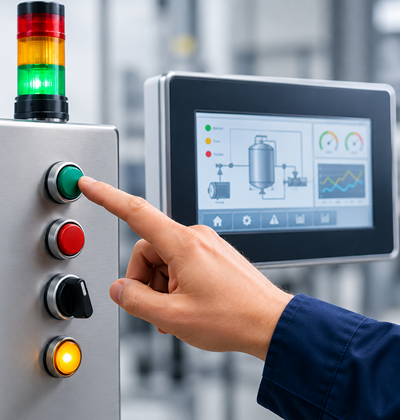
Not every HMI (Human Machine Interface) has a display. And this is often misunderstood.
When people in industrial automation talk about an HMI, most immediately think of a screen or touch panel with a graphical visualization of the machine.
From a technical point of view, however, this is not entirely correct.
An HMI is the interface between a human and a machine.
The term does not define how this interface is implemented.
It can be as simple as a single push button and an indicator light, or it can consist of one or more screens with numerous graphical visualization pages.
This means that even a simple machine equipped with START and STOP buttons, a mode selector switch, and a few indicator lights already has an HMI - even if it has no graphical visualization at all.
A graphical visualization is therefore a part of the HMI, not a synonym for it.
So why is the term HMI so often used in practice when what is actually meant is just the visualization on a screen?
One reason certainly lies in the naming of related products and software solutions.
Names such as Siemens WinCC HMI, TwinCAT HMI, or FactoryTalk HMI have contributed to the widespread use of the phrase "programming the HMI" in everyday engineering, even though what is often meant is the creation of the graphical visualization.
From a technical point of view, however, HMI is a much broader concept.
It includes all the means by which a person operates a machine and receives information about its status - from mechanical push buttons and indicator lights to screens with graphical visualizations, alarms, trends, and diagnostic information.
At first glance, this may seem like a minor issue of terminology.
Nevertheless, understanding the distinction is worthwhile because it helps us think more carefully about user interface design.
A good HMI does not begin with designing attractive screens.
It begins with a much more fundamental question:
How should a person communicate with the machine?
The graphical visualization is simply one possible answer.
© Radim-Automation, 2020–2026. All rights reserved.
Sharing of this article is permitted with proper attribution (link to the original page).
Related previous articles:
- Slow graphical user interface
- Buttons reset and start
- Buttons: Start, Stop and one more
- Resilient machine control design
- When a touch panel isn't enough
- HMI - light versus dark design
- What makes an HMI intuitive?
- HMI - colors in the visualization
- HMI - annoying pop-up windows
- HMI – Don't hide anything
- HMI - back and forward navigation buttons
- HMI navigation
- HMI layout design
- HMI layout and correct display size
- Choosing an HMI display
- HMI - Don't overdo it with complex design
- HMI - Have a consistent style
- Clear signals
- Design considerations for effective HMIS
- Hardware concept
- Are there also any disadvantages?
- Design machines with a focus on user's abilities and needs
- Collect all the requirements and sort them!
- Who will operate?
- Functional and intuitive HMI
- HMI and PLC applications should grow together
- More than just start and stop
- Do the right things and do them right!
- Don't make it worse!
- Industrial evolution - Listen to your customers and follow new trends!
- What does the customer need?
- Focus on target!
- Keep it simple!
- Success is not a matter of coincidence
- Transparency and reliability
- From an idea to a consistent system
Related next articles: