When a touch panel isn't enough
Article#: 00112
Date: 2025-10-21
Author: Radim
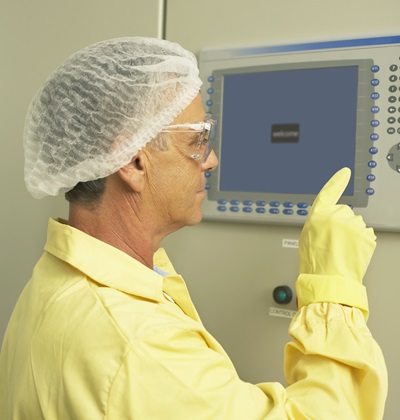
Touchscreen panels have become the standard for controlling devices – not only in consumer electronics but also in industrial automation.
They enable a modern, clear user interface and intuitive machine operation that can be easily adapted to specific requirements.
Adding a new function or rearranging elements on the display does not require any hardware modification, only a small software change.
There is no need to buy a new physical control element, find space for it on the machine, drill a hole, or wire it to an input or output card of the PLC.
This significantly reduces implementation time and lowers the costs of new interface controls.
Although touch control offers many advantages, it is not always the ideal choice for every situation.
In some cases, from the perspective of safety, ergonomics, or reliability, it may be better to use traditional physical controls (hardware elements) – or a combination of both with the touchscreen.
Emergency and safety functions:
Safety devices such as an E-Stop button or a three-position enabling switch (for example, for manual axis movement) must be hardware-based and safely wired.
Only in this way can an immediate and reliable response be ensured when pressed or released.
Standards require that safety-related reactions are instantaneous and independent of the HMI software or operating system.
Software buttons do not have a guaranteed response time or circuit diagnostics, and therefore cannot be used for safety functions.
Critical functions such as Stop must, according to standards, always be easily accessible and must not be blocked by any other function.
In practice, this means that their operation should always be available, regardless of the current visualization screen or logged-in user.
"Blind" operation and tactile feedback:
A physical button allows the operator to perform an action even “blindly” – I can feel under my fingers that I have pressed the correct control.
This certainty is missing with a touchscreen button.
The operator often watches the process or machine movement and cannot constantly check whether their finger is exactly on the right spot on the screen.
Sensitivity and reaction:
An action must not be triggered accidentally – for example by an unintended touch, water droplets, humidity, or electrical interference.
On the other hand, in some environments the operator wears gloves and still needs to control the machine effectively.
The sensitivity of a touchscreen may also degrade due to dust, oil, or other dirt.
All this can cause the touchscreen to respond incorrectly – either not at all, or by reacting without any intentional input from the operator.
In such cases, a mechanical control is more reliable and safer.
Repeated and fast operations:
If the operator performs the same action many times a day – for example, starting a cycle or moving an axis – a physical button is faster, more ergonomic, and provides clear tactile feedback that eliminates the risk of accidental activation.
Reliability and redundancy:
Touch panels are devices with their own operating system and application software – they can freeze, reboot unexpectedly, or lose communication with the PLC.
For this reason, critical functions should always have a physical backup.
Functions such as Stop or motion start should not rely solely on software, but should also be implemented with a hardware button.
Operator presence at the machine:
For certain functions, especially those involving motion, it may be necessary for the operator to be physically present at the machine.
Only then can they monitor the workspace and respond promptly if a hazardous situation occurs.
If software buttons that start movements or processes are accessible in the HMI - even via remote access - this creates the risk that a motion could be triggered without operator supervision.
By using physical buttons placed directly on the machine, the operator’s physical presence is guaranteed, ensuring visual control of the workspace.
Data entry and precise control:
A touchscreen panel is ideal for viewing machine states, simple parameter edits, or confirming actions.
However, for extensive text or numeric input, it is less efficient - in such cases, a keyboard remains the better choice.
Where fine positioning or cursor control is required, a mouse or trackball is more suitable.
And for robot or axis motion control, a joystick performs best - it enables smooth, intuitive movement with immediate tactile feedback that no software button can provide.
Incomplete or unclear design:
The ease of making changes in touch panel HMIs often leads to visualization layouts and functions that are not properly thought through from the start.
A common argument is: "We can always add or rearrange it later in the panel."
However, such an approach results in loss of consistency, cluttered screens, and ultimately operator confusion.
Even though visualization is easy to modify, it should always have a clear structure, logical control flow, and consistent visual style from the very beginning.
Combination of touchscreen and hardware controls:
The goal is not to choose between a touchscreen and hardware controls.
The best solution usually lies in their combination, where each technology is used for what it does best.
© Radim-Automation, 2020–2026. All rights reserved.
Sharing of this article is permitted with proper attribution (link to the original page).
Related previous articles:
- What makes an HMI intuitive?
- HMI – Don't hide anything
- Choosing an HMI display
- HMI is not a web page
- HMI - Have a consistent style
- High Performance HMI
- PLC network diagram
- Talk to operators
- Clear signals
- Design considerations for effective HMIS
- Safety relays versus safety PLC
- Hardware concept
- A good concept = Complete set of suitable solutions
- Are there also any disadvantages?
- Think critically!
- Design machines with a focus on user's abilities and needs
- Learn from your journey!
- Why do automation projects fail?
- Collect all the requirements and sort them!
- Who will operate?
- Functional and intuitive HMI
- More than just start and stop
- Safety first!
- Do the right things and do them right!
- Define test scenarios and test cases continuously!
- Don't make it worse!
- Keep the answers to the question "Why"
- Industrial evolution - Listen to your customers and follow new trends!
- What does the customer need?
- Don't disappoint your customer!
- Focus on target!
- Check the result!
- Keep it simple!
- Success is not a matter of coincidence
- Development is evolution
- Transparency and reliability
Related next articles:
- Resilient machine control design
- Redundant PLC – Yes or No?
- Buttons: Start, Stop and one more
- Different types of machine stops
- Safety stops must have the highest priority
- Danger! Unexpected machine start
- Buttons reset and start
- Slow graphical user interface
Comment#: 00001
Date: 2025-10-22
User: Radim
Around 2015, I worked on a project to upgrade the HMI of a ring spinning machine.
The original panel was a B&R PP450 – a 5.7" monochrome display without touch, but with several physical buttons and LED indicators arranged around the screen. We replaced the panel with a new model – the B&R T30, a 10.1" color touch panel. At first glance, it seemed like a big step forward: a larger color display, modern touch operation, and more options for visualization.
In practice, however, it turned out that the buttons and LED indicators, which were hardware-implemented around the screen on the PP450, now had to be displayed directly on the touchscreen.
If they need to be available on every visualization page, they permanently occupy part of the display area that could otherwise be used to show machine and process information.
Additionally, when editing values, the software keyboard opens directly on the screen and covers a significant portion of the visualization.
As a result, the seemingly larger display did not actually provide more space for process and machine information.
In the article "When a touch panel isn't enough", several situations are described where, from the perspective of safety, ergonomics, or reliability, it is preferable to retain hardware control elements. If you still decide to implement these elements into the touch screen, it is important to consider their space requirements and take them into account when selecting the display size and designing the HMI layout.
Comment#: 00002
Date: 2025-10-28
User: Radim
Real-world example: When a physical button makes all the difference
While developing a system for automatic focusing and semi-automatic assembly of an endoscopic camera lens, we gradually arrived at a simple yet very effective improvement.
Automatic focusing was performed by a hexapod robot, while the operator inserted two lens components into the gripper of the hexapod and, after automatic focusing, glued them together.
The process therefore combined manual actions by the operator with automated functions of the system – such as the gripper, hexapod, and vision cameras.
The visualization was displayed on a monitor as a clear sequence of steps, showing which stage the process was in and what would follow next.
The operator confirmed the completion of each manual step with a mouse click, triggering the next automatic sequence.
During initial tests, the concept worked very well – the visualization was clear and intuitive.
However, once the operator became familiar with the workflow and the process ran smoothly, it turned out that clicking the correct button on the screen was not very practical and required shifting attention away from the product.
Therefore, we added a green illuminated button next to the emergency stop button.
This button lights up when the system is ready to proceed to the next step, allowing the operator to confirm completion of the manual task without checking and using the visualization on the monitor.
Because the button is easily accessible and provides tactile feedback, the operator can stay focused on the process and work more fluently.
The result?
Higher speed, a more natural workflow, and less distraction of the operator from the ongoing tasks.
Single physical button significantly improved the ergonomics of the entire system.
- https://www.linkedin.com/posts/kalousekradim_real-world-example-when-a-physical-button-activity-7388974727777832960-8KcW?utm_source=share&utm_medium=member_desktop&rcm=ACoAABeXRSMBb3kZkOQw9GhE1bUeV0ir0DMOaC0
Comment#: 00003
Date: 2025-10-29
User: Radim
In addition, pressing a physical pushbutton gives the operator a stronger sense of awareness and responsibility for the action being executed.
A mechanical press requires a deliberate motion and physical effort, unlike a light touch or mouse click on a virtual button, which can feel less intentional and lead to less conscious operation.
This makes physical controls particularly suitable for actions such as starting, stopping, or confirming machine operations, where maximum operator awareness is essential.
Comment#: 00004
Date: 2025-10-29
User: Radim
The worst scenario I've seen is when originally hardware buttons – such as Start and Stop – are implemented in the visualization, but they are not accessible from all screens or can be covered by a popup window.
In such cases, the operator may lose immediate access to critical functions, which can compromise both usability and safety.
Comment#: 00005
Date: 2025-11-11
User: Radim
"Electromechanical devices such as pushbuttons, emergency stops, selector switches, potentiometers, keylock switches and optical and acoustic signaling devices remain an important part of most control systems and will continue to be used far into the future for their convenience, safety, intuitive use, robustness and reliability.
Pushbuttons in particular remain unsurpassed, being intuitive to operate, providing distinctive tactile feedback, and with a very robust design (up to IP69K)."
- EAO. Technical Article - HMI System Design – more than just a touch. (Page 4)
- https://www.eao.com/en/general/cl92szx2pewqc0but1mqy8kw6/downloads-from-first-source?f_document_type=mam_technical_articles&f_name=HMI%20System%20Design
Comment#: 00006
Date: 2025-11-13
User: Radim
"Electromechanical actuators and indicators in mixed technology solutions (together with a touchscreen) offer following benefits:
• Intuitive operation of critical functions
• Discrete pushbuttons enable independent control of various functions
• Illumination allows clear, easily visible status displays (e.g. illuminated pushbuttons)
• Softkeys are a perfect complement for touch displays. Softkeys are keys outside of the touch display that perform different functions depending on what is displayed on screen."
- EAO. Technical Article - HMI System Design – more than just a touch. (Page 4)
- https://www.eao.com/en/general/cl92szx2pewqc0but1mqy8kw6/downloads-from-first-source?f_document_type=mam_technical_articles&f_name=HMI%20System%20Design
Comment#: 00007
Date: 2026-02-26
User: Radim
"There is one other reason that frequently used buttons be hardwired- over time, the HMI screen may wear out, specifically where the operator has to frequently confirm an action or some other frequently used function."
- Robert Plaschka
- https://www.linkedin.com/feed/update/urn:li:activity:7431724503145119744?commentUrn=urn%3Ali%3Acomment%3A%28activity%3A7431724503145119744%2C7432603062772600832%29&dashCommentUrn=urn%3Ali%3Afsd_comment%3A%287432603062772600832%2Curn%3Ali%3Aactivity%3A7431724503145119744%29
Comment#: 00008
Date: 2026-02-26
User: Radim
Response to a previous comment by Robert Plaschka:
Thanks for the addition, that’s a very valid point. HMI wear over time (particularly on frequently used on-screen buttons) is often overlooked, and it’s another good reason to keep hardware pushbuttons as part of the interface.
Do you find it possible to push back against the widespread move to touch-only panels and still keep hardware pushbuttons for some frequently used functions?
- https://www.linkedin.com/feed/update/urn:li:activity:7431724503145119744?commentUrn=urn%3Ali%3Acomment%3A%28activity%3A7431724503145119744%2C7432603062772600832%29&replyUrn=urn%3Ali%3Acomment%3A%28activity%3A7431724503145119744%2C7432670690341789696%29&dashCommentUrn=urn%3Ali%3Afsd_comment%3A%287432603062772600832%2Curn%3Ali%3Aactivity%3A7431724503145119744%29&dashReplyUrn=urn%3Ali%3Afsd_comment%3A%287432670690341789696%2Curn%3Ali%3Aactivity%3A7431724503145119744%29
Comment#: 00009
Date: 2026-02-26
User: Radim
I believe there are two main reasons why hardware buttons are nowadays replaced entirely by on-screen buttons in the visualization.
The first reason is aesthetics: the panel looks sleek and clean, and hardware buttons can disrupt that smooth design.
The second reason is cost: adding a hardware button, along with its mounting and wiring on the machine, is more expensive than implementing the function in the visualization.
However, after months of operation, the touchscreen tends to wear out in areas where frequently used functions are located. The sleek, smooth design is no longer maintained, and the cost of replacing a worn-out touchscreen can be substantial.
I understand the importance of keeping project costs under control and choosing a cheaper solution when it is sufficient. Yet in this case, there is a hidden paradox: opting for a cheaper solution upfront - relying solely on touchscreens - can result in significantly higher costs later.
For these reasons, keeping hardware pushbuttons for certain frequently used or critical functions can improve reliability, usability, and even long-term cost-effectiveness.